Healing a failed installation of a Medi-Net® Application
For the most part Medi-Net® applications run smoothly. Occasionally, an application or component fails to install correctly. When this occurs, you’ll see a screen similar to the following…
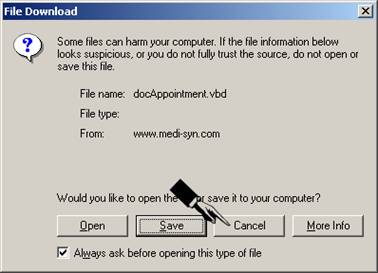
If you are presented with such a screen, it is very important to select [Cancel]. Selecting any other option makes troubleshooting and repair more difficult.
After selecting cancel, do the following to repair and resume the installation.
- Select [Internet Options]
on the [Tools] menu of the Internet Explorer window.
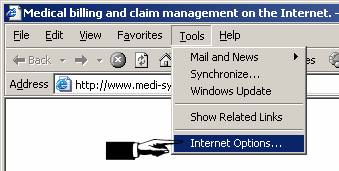
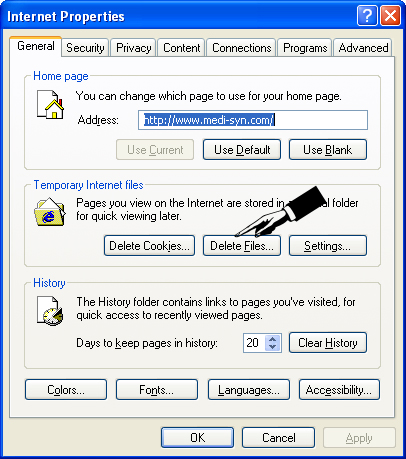
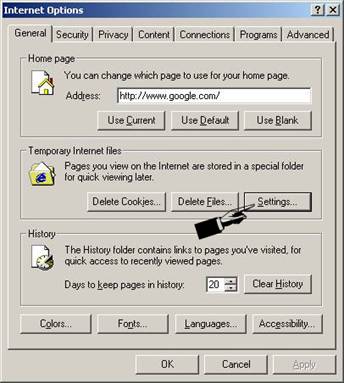
- On the window that pops up, select [Delete Files] in the Temporary Internet Files frame.
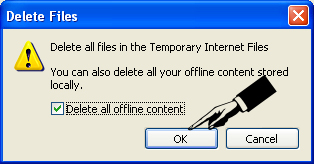
- On the screen that pops up, select [Delete all offline content]
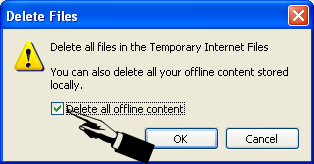
- Then select [OK]
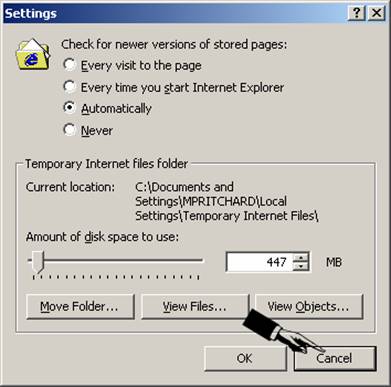
- On the window that remains, select [Settings] in the Temporary Internet Files frame.
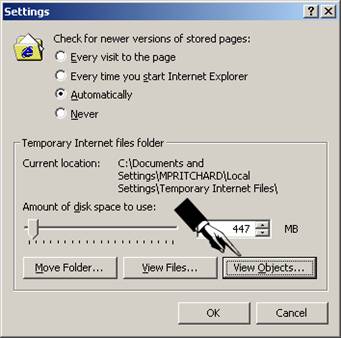
- On the screen that pops up, select [View Objects] in the Temporary Internet file folder frame.
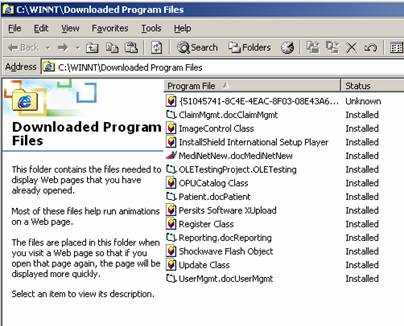
- On the screen that appears, there is a list of Downloaded Program Files. This list contains all the programs that were downloaded and installed for use with Internet Explorer.
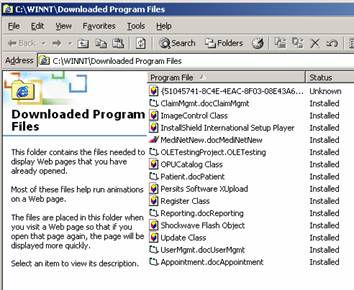
- Look through the list for the application that is causing the problem. In this case, we’re having a problem with Appointment. “Appointment.docAppointment” is the application we have located.
- Left click on the application name to highlight it.
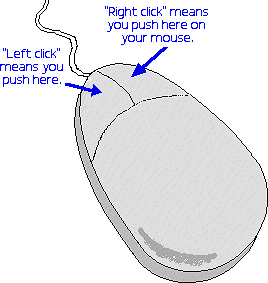
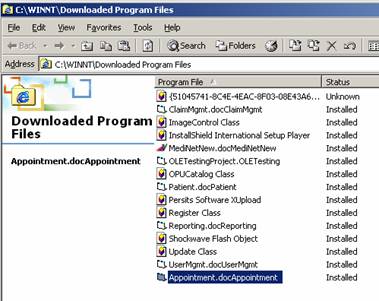
- Then right click to show a pop-up menu.
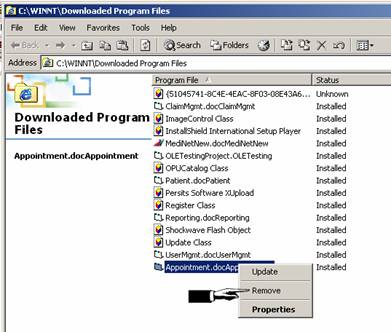
- Select [Remove] on that menu. A confirmation screen appears. Verify that you’re about to remove the correct application and select [Yes]
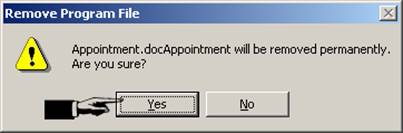
- Confirm that the application was removed.
- Select [Cancel] on the Settings dialog box.
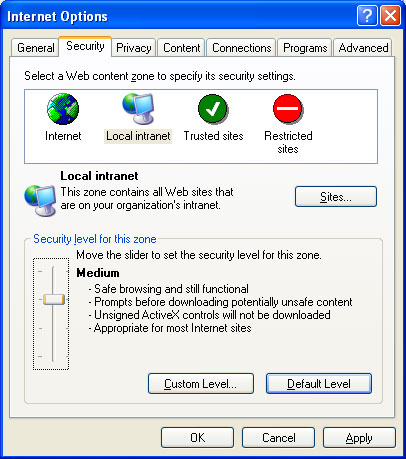
- Select the Security tab
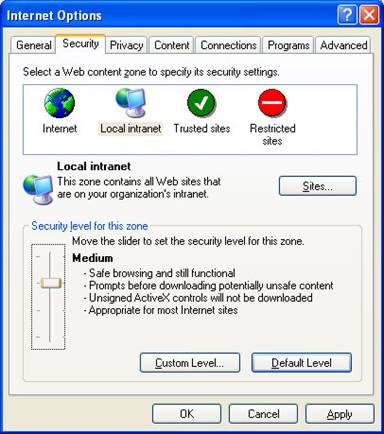
- If the [Default
Level] button is disabled, move the slider up to High
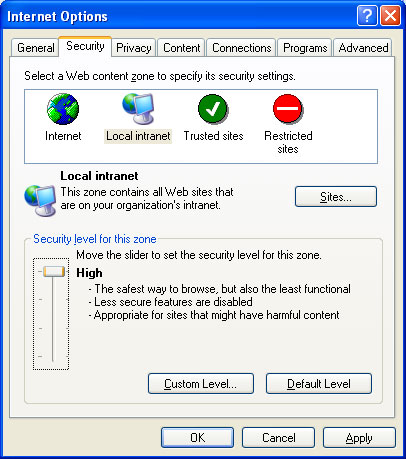
- Select the [Default
Level] button to reset the security level to Medium
- Select the Advanced
tab
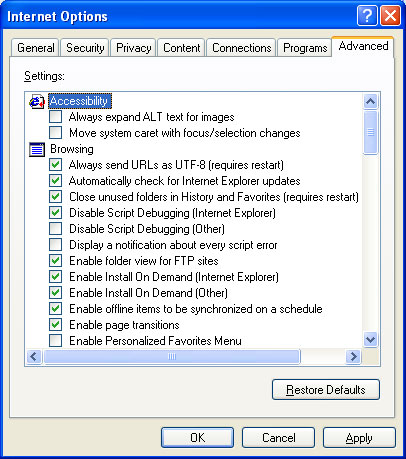
- If the [Restore
Defaults] button is available, click it
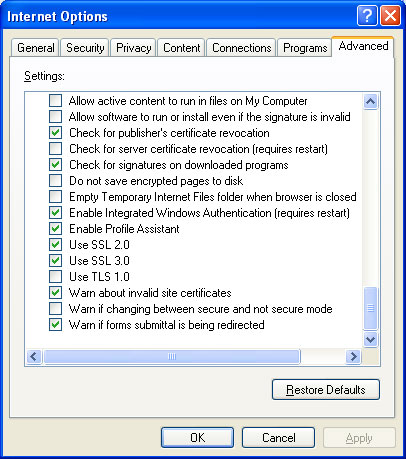
- Scroll down to the bottom
of the list and clear the checkbox next to
Warn if changing between secure and not secure mode
- Then Select [OK]
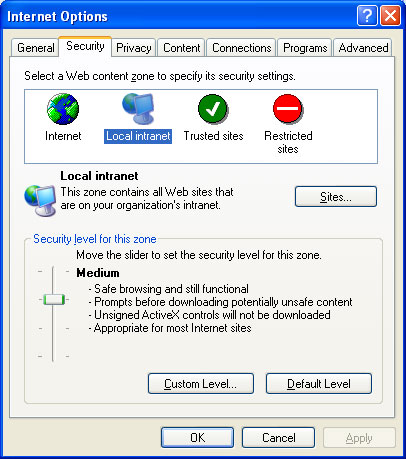
- Select [OK] on the Internet Options dialog box.
- Click on the [X] on the top right of the Internet Explorer window to close it.
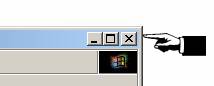
- Close the Internet Explorer window.
- Reboot the machine.
- Reopen the Internet Explorer window.
- Browse to the Medi-Syn website http://www.medi-syn.com
- Select [Client Login] from the menu on the left
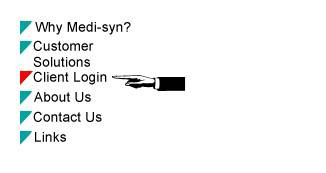
- Select [Connect to Medi-Net]

- Then follow the normal installation instructions
If this doesn't resolve the issue. Use this tool to see if there's an error log. If there is, please call Medi-Syn for assistance.
If none of the remedies work, there is a last resort procedure to try. This link leads to a "use at your own risk" method that will more than likely fix the problem.